Outputs & File Preview
Browse output files published by workflow runs, with inline preview for common formats.
Access Points
Run Outputs
Outputs for a specific run. Accessible via the Outputs button on the run detail page. Defaults to directory browse mode.
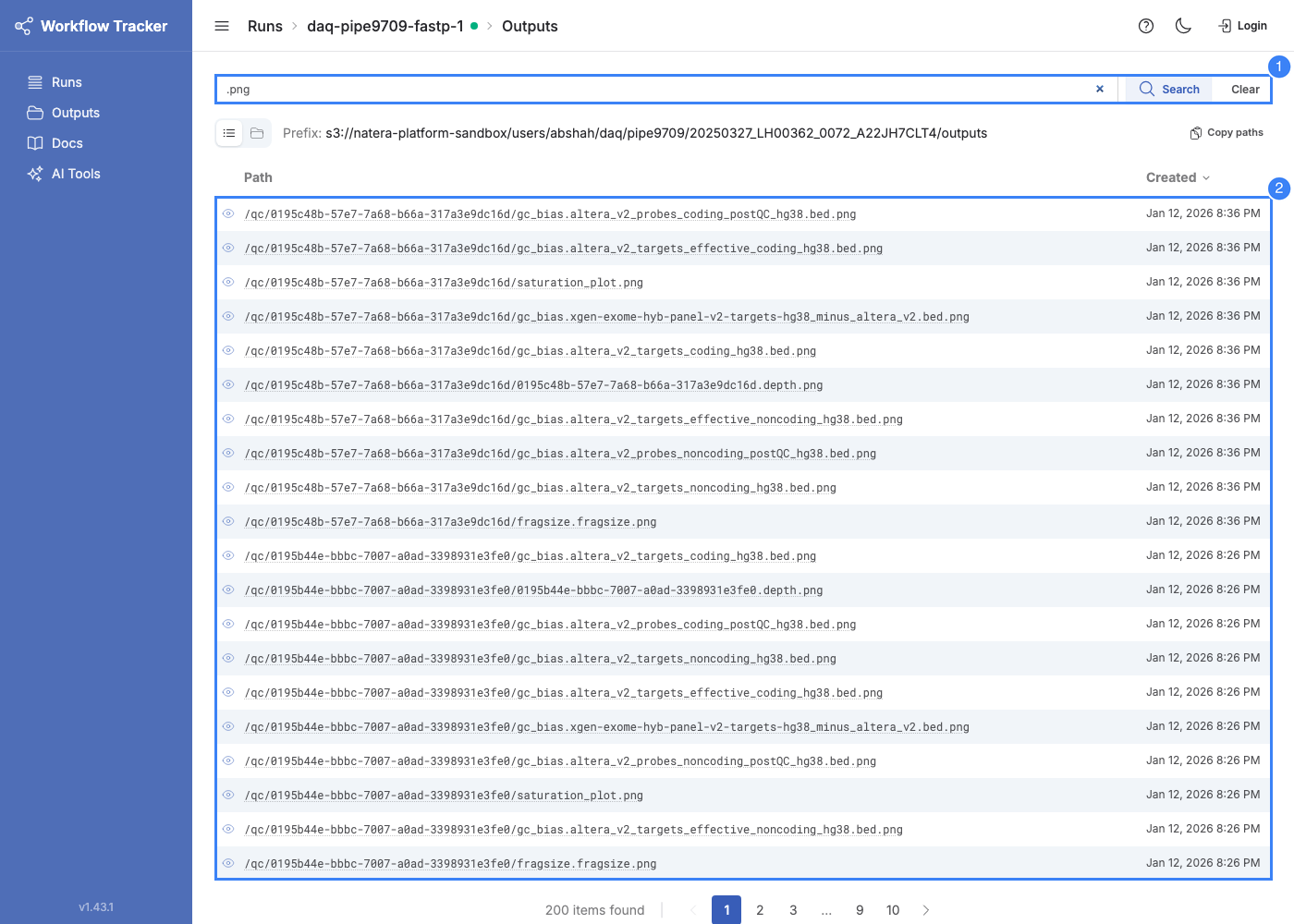
Global Outputs
Outputs across all runs, accessible via the sidebar. Requires a search query before displaying results (the dataset can be millions of files).
View Modes
Directory Browse Mode
Default for run outputs. Navigable folder tree with breadcrumbs.
Table Mode
Flat list with sortable columns: Path, Workflow Run (global only), Created. Default for global outputs. Switch between modes using the view toggle.
Search
Filters by file path using multi-word AND logic. Examples: multiqc html, sample1 vcf, bam bai.
Copy Paths
Copies S3 URIs of all visible outputs to the clipboard, scoped to the current directory or search filter. Useful for passing paths to downstream tools or sharing file locations.
File Preview
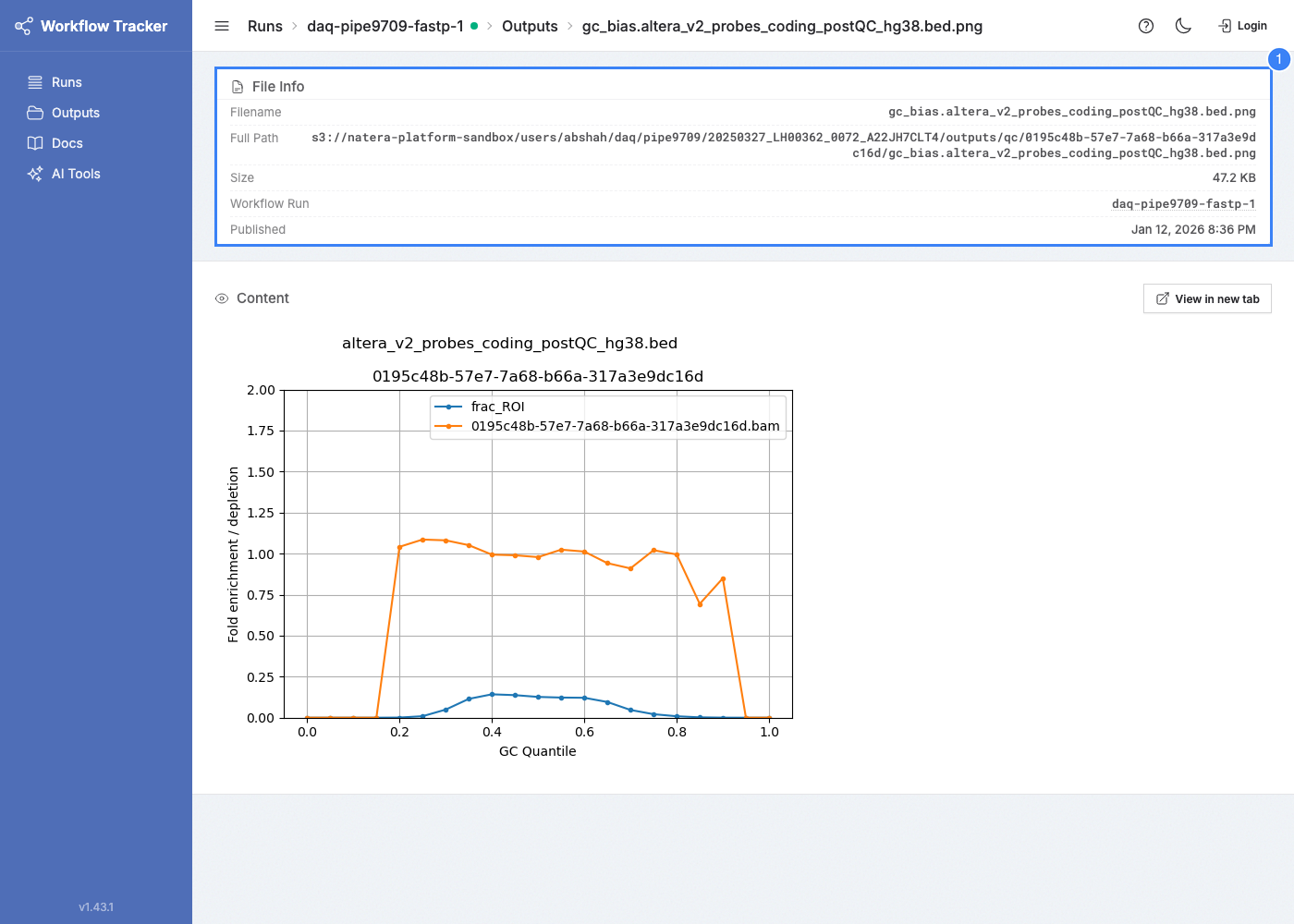
Click any file to preview it inline. Content is fetched from S3 and rendered by type.
Supported Formats
| Format | Preview |
|---|---|
| HTML | Rendered in an iframe (MultiQC reports, VEP summaries, etc.) |
| Browser's built-in PDF viewer | |
| Images (PNG, JPG, GIF, SVG, BMP, TIFF, WebP) | Displayed inline |
| CSV / TSV | Formatted table with auto-detected delimiters (comma, tab, semicolon, pipe) |
| JSON | Pretty-printed |
| Text (TXT, LOG, SH, PY, R, NF, CFG, YAML, YML, MD, XML, BED, GTF, GFF, VCF, SAM, FASTA, FASTQ, MAF) | Code block |
Preview Size Limit
File preview is limited to 25 MB.
The preview page shows filename, full S3 path, size, and publish timestamp. A "View in new tab" link opens the raw file directly.
Work Directory Browser
Accessible from the task detail page via View Workdir. Shows the contents of a task attempt's S3 work directory with sortable columns (name, size, last modified).
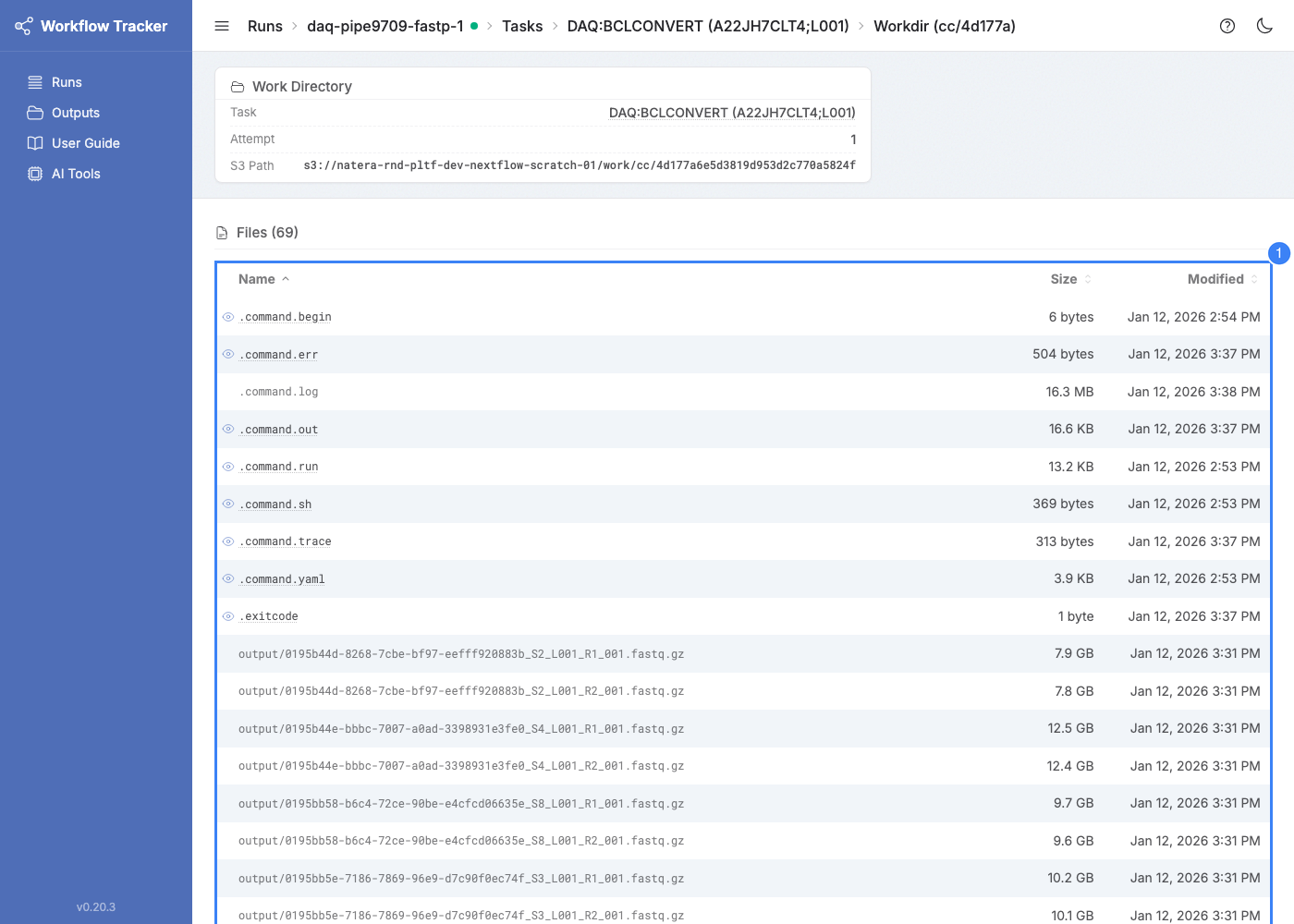
For details on common work directory files (.command.sh, .command.err, etc.), see Task Detail - View Workdir.
Deleting Outputs
Run owners and cluster admins can delete a run's S3 output directory from the Actions menu on the run detail page (Delete output dir). A confirmation dialog requires typing delete to proceed.
Deletion is destructive: the S3 files cannot be recovered. Tracker keeps the index of paths so you can still see what was published, and the run detail page records who deleted the outputs and when.
The same operation, plus look-up by S3 URL and DB-only updates for hand-managed S3, is available from the CLI: see Managing Outputs.